Overview
This article provides instructional material alternatives, with examples, for use in online, hybrid, and in-person courses. Three options will be considered. Should you “make”, “buy” or look for “free” materials that support your learning objectives?
Before You Decide: Make? Buy? or Free?
Accessibility is a university requirement under the Americans with Disabilities Act, Section 504 of the Rehabilitation Act, and state law. Review UConn IT Accessibility Key Strategies to Develop Accessible Course Materials web resources and UConn eCampus Accessibility Checklist and Guide to ensure your materials are accessible to all students. In addition, review UConn Privacy Policies to ensure compliance before entering any information or data into technologies, especially those tools not supported by the University.
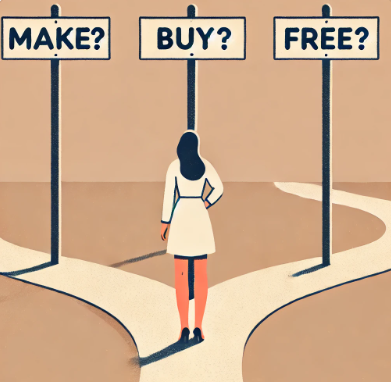
Before making any decisions about instructional materials, understand the following considerations:
- Alignment – How does the instructional material align with your learning objectives?
- Accessibility – Is the instructional material accessible, or can it be made accessible, for students?
- Privacy and Security – Will using the instructional material comply with University Privacy Policies?
- Copyright – Is the use of the instructional material in compliance with copyright laws?
- Support – Does the University support the technology, or resource, or will it be externally supported?
Making Your Own Instructional Materials
Consider making your own instructional materials to meet the specific needs of students. There are pros and cons to creating custom materials. One significant advantage is the ability to tailor materials specifically for your students and learning objectives. Additionally, sharing these materials with a larger community is possible, potentially through a Creative Commons license. However, the time it takes to develop thoughtful, focused, and relevant learning materials can make it prohibitive in some cases. Examples of instructional materials that can be made independently:
Presentations and Videos
UConn supports a number of tools that can be used to create presentations and videos in an accessible manner and comply with privacy policies. There are also non-university supported tools, such as Canva. When creating any presentation or video for instruction, make sure you are meeting the University’s accessibility and privacy standards. The following is a sample of tools you may consider.
| Tool | Description | Creating Accessible Materials | Support Resources |
|---|---|---|---|
| PowerPoint (Microsoft 365) | Visual slideshow tool for presentations. (Available for free via UConn Software under Microsoft) | Microsoft PowerPoint | IT Accessibility | PowerPoint Help and Learning | Microsoft Effective PowerPoint Design | UConn CETL |
| Kaltura Capture Video | Cloud-based media capture and storage application that integrations with Ultra/HuskyCT. (Available for free, see Support Resources) | Video & Audio | IT Accessibility. | Kaltura: UConn’s Video Platform Educational Technologies offers webinars and support. |
| VoiceThread | Web-based collaboration tool users upload digital media and engage in asynchronous discussions around it. (Available for free through Ultra/HuskyCT LTI) | Guide to Creating Accessible VoiceThreads Microsoft PowerPoint | IT Accessibility Video & Audio | IT Accessibility. | VoiceThread Basics VoiceThread Assignments | UConn Educational Technologies offers webinars and support. |
| UConn Lightboard Technology | Specialized recording room with a transparent panel that allows instructors to face their audience (the camera) while writing content on the screen. (Available for free, see Support Resources) | Upload and host Lightboard videos to Kaltura. Videos will require closed captions. Video & Audio | IT Accessibility. | Recording Room – Lightboard Educational Technologies supports use of the Lightboard. |
| Canva | Online design tool for creating graphics, presentations, posters and other visual content. | Accessibility at Canva | Canva Help Center |
For more options and information, see Creating & Managing Videos for Online Teaching & Learning.
Images
You may choose to create your own images using software or AI generators. See UConn’s Software Catalog for Adobe Creative Cloud and other software purchase options. When creating and using images in your instructional materials, ensure they meet accessibility standards. If you are using AI generated images, include an attribution.
| Tool | Description | Creating Accessible Materials | Support Resources |
|---|---|---|---|
| Adobe Photoshop | Software for photo editing, raster graphics, and layered digital painting. (Available via UConn Software under Adobe Create Cloud) | Images | IT Accessibility | Photoshop Help | Adobe |
| Adobe Illustrator | Software for vector graphics, logos, and scalable illustrations. (Available via UConn Software under Adobe Create Cloud) | Images | IT Accessibility | Illustrator Help | Adobe |
| Venngage | Online design platform and infographic maker. (Available via UConn Software) | Venngage | IT Accessibility | Venngage Support Center |
| Procreate | Popular tablet app for digital sketching and painting. | Images | IT Accessibility | Procreate Help |
| Canva | Online design tool for creating graphics, presentations, posters and other visual content. | Accessibility at Canva Images | IT Accessibility | Canva Help Center |
AI Generators
- Blackboard Ultra (HuskyCT) AI Design Assistant: Use the AI Design Assistant in Ultra Course View to create images. (No purchase necessary; integrated with Ultra/HuskyCT; use Blackboard Ally for Accessibility checker.)
- Microsoft 365 CoPilot: Create images with Copilot AI image generator. (Available via UConn Software Catalog; see Images | IT Accessibility for accessibility help.)
- ChatGPT: Generate AI images with ChatGPT. (Available via UConn Software Catalog; see Images | IT Accessibility for accessibility help.)
Audio
When creating audio for instruction, make sure you are meeting the University’s accessibility and privacy standards. The following is a sample of tools you may consider.
| Tool | Description | Creating Accessible Materials | Support Resources |
|---|---|---|---|
| VoiceThread | Web-based collaborative tool users upload digital media (including audio) and engage in asynchronous discussions around it. (Available for free through Ultra/HuskyCT LTI) | Guide to creating accessible VoiceThreads Video & Audio | IT Accessibility | Record audio slide with your microphone | VoiceThread VoiceThread Assignments | UConn Educational Technologies offers webinars and support. |
| Audacity | Free, open-source, digital audio editor and recorder application. | Video & Audio | IT Accessibility | Audacity Help |
Text
UConn supports a number of text creation tools that can be used to create instructor content and handouts. When creating any instructional materials, make sure you are meeting the University’s accessibility and privacy standards. The following is a sample of tools you may consider.
| Tool | Description | Creating Accessible Materials | Support Resources |
|---|---|---|---|
| Word (Microsoft 365) | Word processing program to create, edit, format, and save text-based documents that can also include links and images. (Available for free via UConn Software under Microsoft) | Microsoft Word | IT Accessibility | Microsoft Word Help and Learning | Microsoft |
| Documents in Ultra (HuskyCT) | Customizable content pages in Ultra that contain blocks and can be made up of text, images, links, files, formative knowledge check questions, embedded videos and HTML or CSS blocks. | Blackboard Ally (HuskyCT Accessibility Tool) | IT Accessibility | Creating Documents in Ultra Course View Educational Technologies offers webinars and support. |
| Portable Document Format (PDF) | A file type created by Adobe that keeps the exact same fonts, images, and layout no matter what computer, phone, or program you use to view it. | PDFs | IT Accessibility | Adobe Desktop Help |
Buying Instructional Materials
Consider the various options for purchasing materials, though be mindful that the cost is often passed on to students. Traditionally, college courses are associated with buying textbooks, but with the abundance of online resources (from government websites to open educational resources), reconsider if purchasing is necessary. Before deciding to ask students to buy materials, reflect on the following:
- Is there a comparable, high quality substitute that is readily available at a lower cost or for free?
- Can negotiation with the publisher reduce costs for students?
- Can students achieve the learning objectives without purchasing materials?
If the answer to any of these questions is yes, explore low or no-cost alternatives.
As of Spring 2023, the UConn Board of Trustees approved the Barnes & Noble First Day Complete Program, also known as the Husky Book Bundle Program, charging UConn undergraduate students a $285 per semester fee for textbooks and course materials. In return, students receive all required materials for registered courses at no additional cost from the bookstore. This program aims to help reduce the cost of course materials for students. All full-time undergraduate students are eligible and automatically enrolled in the Husky Book Bundle program. Students not wishing to participate must “opt out” before each semester begins. Here is more information on the Husky Book Bundle.
Looking for Free Materials
Remember the saying, “Why pay for something when it can be obtained for free?” Explore resources on Finding and Using Free Learning Materials and How to Cite Free Learning Materials in your Courses. For a high-quality, free textbook, check out the Open Textbook Library hosted by the University of Minnesota, Twin Cities, or visit UConn’s Open Educational Resources for Teaching and Learning, hosted by the UConn Library.2 Research indicates providing students with free access to various instructional materials enables better anticipation and response to the diverse backgrounds and skills students bring to class.1 Zero-cost materials also result in higher success rates, higher completion rates, and improved grades.3
- YouTube (Free video sharing website: not supported by UConn and may not meet accessibility standards)
- Vimeo (Free video hosting platform: not supported by UConn and may not meet accessibility standards)
Additional Resources
Related Resources
- Quality Matters Rubric: General Standard 4. Instructional Materials
- Open Education (UConn Library)
Related Articles
References
- University of Minnesota Open Textbook Library
- UConn Library Open Education
- Shalabi, L. (2021, March 1). Survey: Textbook costs having greater impact on students during pandemic. WUSF.